
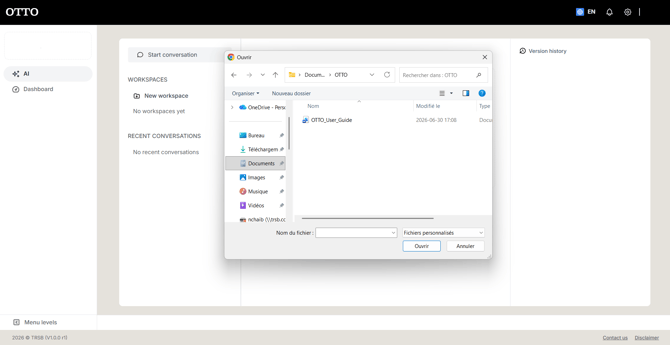
To begin, add a document to a conversation. You have two options:
- Drag and drop a file onto the upload area.
- Click Browse documents to pick a file from your computer's file explorer.

| Detail | What to know |
|---|---|
| Supported files | Word, PowerPoint, Excel, PDF, text, and XLIFF |
| Limits | One document per conversation, up to 200 MB — pasted text up to 5,000 characters |
| After adding | The file is processed and added to the Version history |
Pre-flight: check the document details
Right after you add the document, OTTO shows a "pre-flight" card that confirms the file was handled and summarizes its key details, before you run any action:
| Field | What it shows |
|---|---|
| File name | The name of the added document (e.g. TRSB US Inc_MSA Template.docx) |
| Words | The number of words detected |
| Size | The file size (in KB or MB) |
| Language | The auto-detected source language — you can correct it |
| Status (shield) | The shield icon confirms the file was checked and processed |
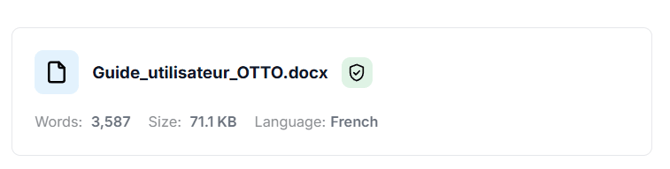
The file also appears in Version history tagged Source, with its Source language and a Download button. Below the card, Available actions appears so you can choose what to do next (see "Available actions").
Depending on what's enabled for your organization, OTTO may also create a Generated XLF — an intermediate file used for translation — downloadable from the Version history. This is optional and only appears if it has been enabled for your organization.
If the detected language is wrong, fix it at this step: every following action will use your choice (see "How do I check or correct the detected language?").