
When you open OTTO, the screen is organized into a few clear areas.
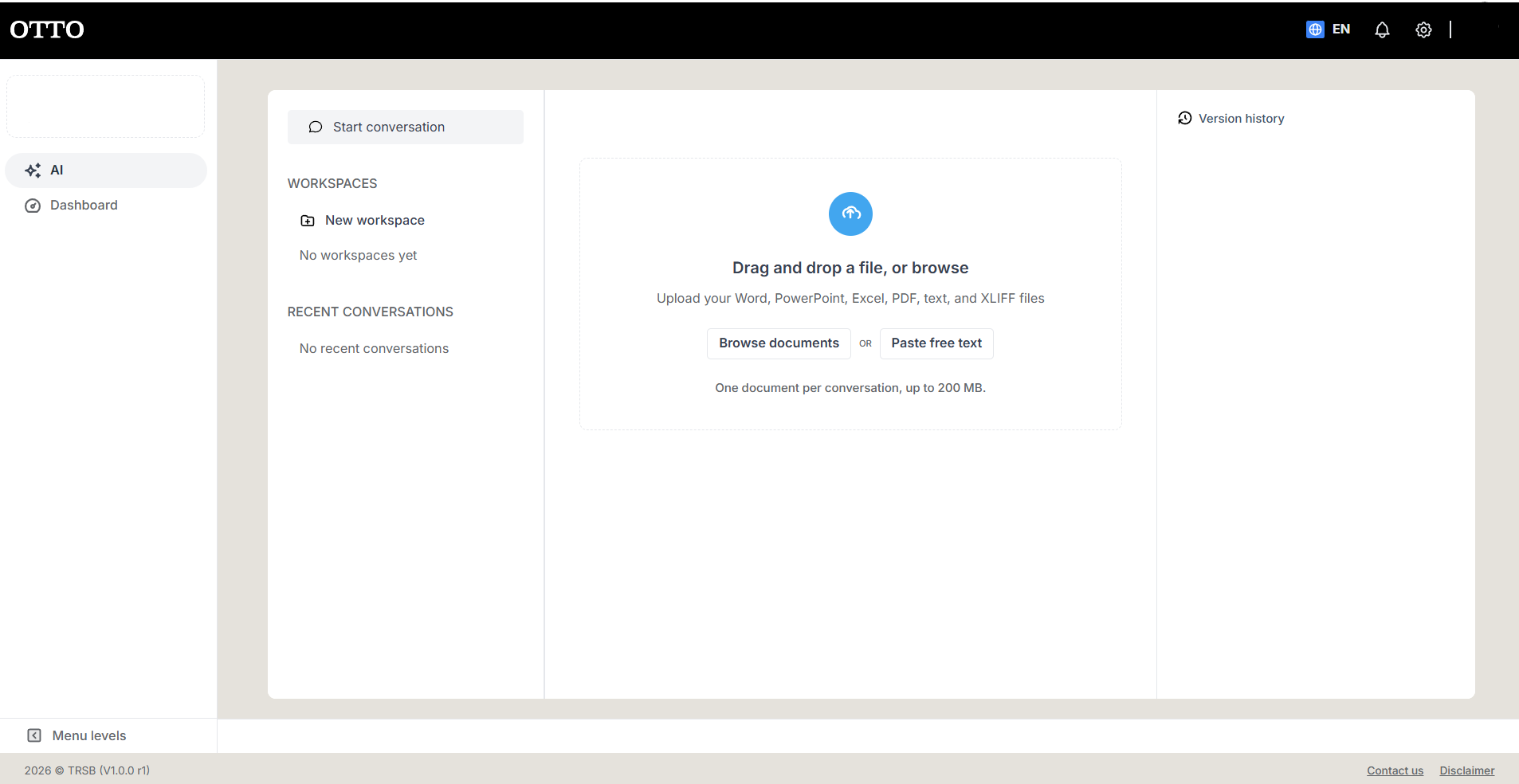
Top bar
- OTTO logo — returns you to the home screen.
- Language selector (EN) — changes the interface language.
- Notifications (bell) and Settings (gear).
- Your profile (initials) — your account menu; also shows your role (e.g. Admin).
Left navigation rail
- AI — the space where you upload and work on documents.
- Dashboard — an overview of your activity.
- Menu levels (bottom) — collapse or expand the side panels to free up space.
Conversation panel
- Start conversation — begins a new conversation to process a document.
- Workspaces — group your work by project; use New workspace to create one ("No workspaces yet" appears until you do).
- Recent conversations — reopen recent work ("No recent conversations" when empty).
Central work area
- Where you add and work on your document. When empty, it shows the upload area: Drag and drop a file, or browse, with Browse documents or Paste free text.
Version history (right)
- Lists every file tied to the conversation, each with a Download button. It stays empty until you add a document.
Footer
- Contact us and Disclaimer links, plus the app version, at the bottom of the screen.